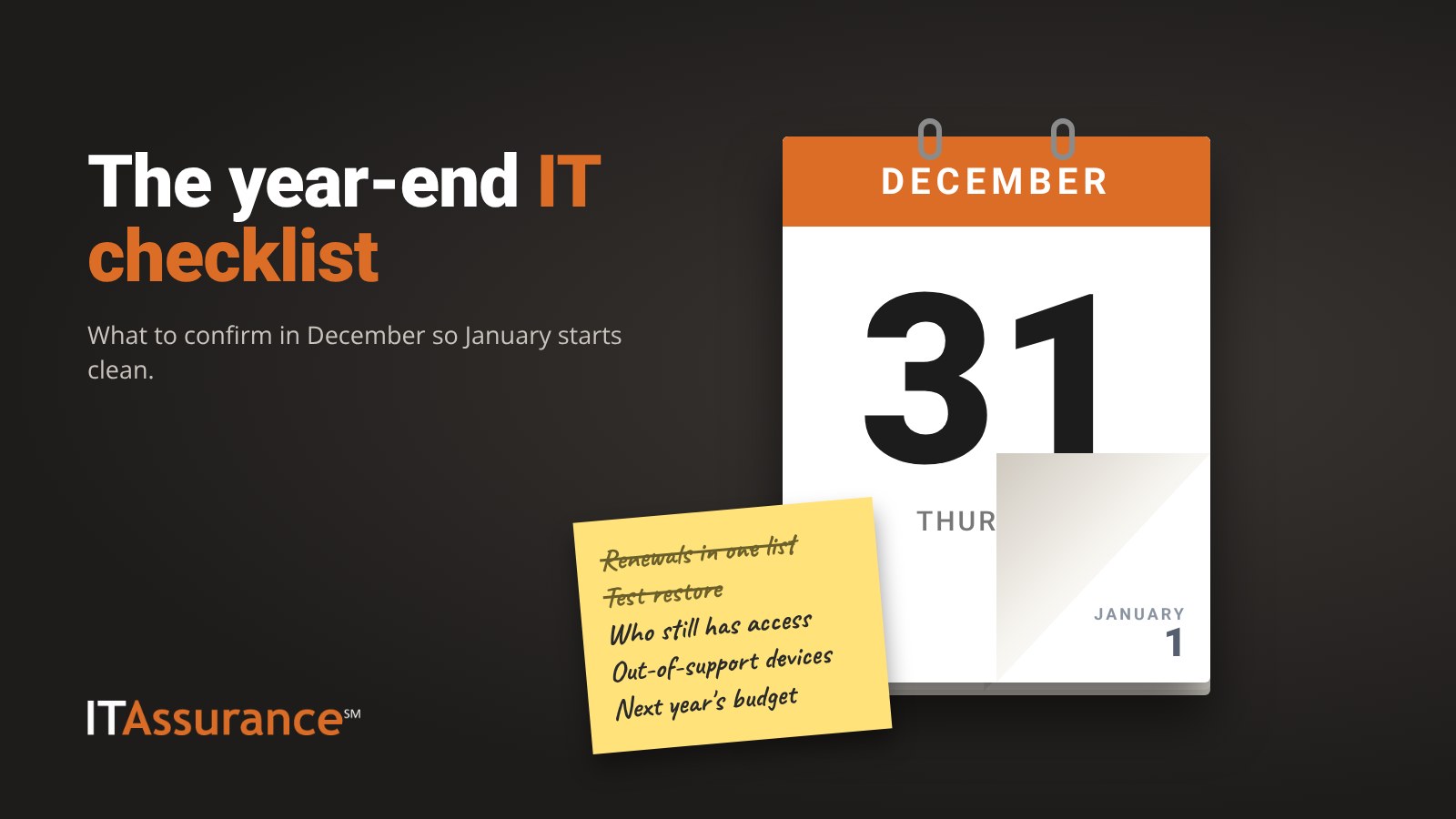
A year-end IT checklist is a short list of things to confirm in December so January starts clean: renewals, backups, who has access, devices that are out of support or out of warranty, MFA gaps, documentation and next year’s budget. Work through the eight sections below over two or three afternoons, write down what you find, and you’ll have next year’s IT plan on one page.
December suits this work. Things are often slower, renewals are about to land, and next year’s budget is still being written. Here’s the list in the order we’d work it.
1. Licenses, renewals and subscriptions
Pull every recurring IT charge into one list: Microsoft 365 licenses, domain names, website hosting, SSL certificates, line-of-business software, security tools and any cloud storage someone signed up for with a company card.
- Match license counts to real people. Licenses still assigned to former staff are a common leftover.
- Note every renewal date in the next 90 days and who receives the reminder email.
- Confirm domain names are set to auto-renew and registered to a company account, not one person’s personal email.
- Check that the card on file won’t expire before the renewal does.
2. Backups and a test restore
A backup report that says “success” tells you the job ran. It doesn’t tell you that you can get your files back. Pick one real thing and restore it: a folder from the file server, a deleted email, or a copy of your accounting database to a test location. Time it and write down what happened.
Then check coverage. Are Microsoft 365 mailboxes, OneDrive and SharePoint included, or only the server? Are the laptops of people who save files locally covered? Our backup report checklist lists what a useful report should show.
We’ve seen backups that looked fine on every report fail the moment someone actually needed a file back. That’s why the test restore matters more than the green checkmark.
3. User and access review
Export your list of user accounts and read every name. You’re looking for:
- Accounts for people who left this year that are still enabled, or still forwarding mail somewhere.
- Shared mailboxes and generic logins (front desk, scanner, “admin”) and who knows those passwords.
- Vendors and contractors with remote access they no longer need.
- Staff with admin rights they don’t use day to day.
If you find leftovers, our employee offboarding IT checklist covers what to close for each departure.
4. Patching and end-of-life software
Software past its end-of-support date stops receiving security updates. Several common products crossed that line recently, according to Microsoft’s own lifecycle pages:
- Windows 10 reached end of support on October 14, 2025 (Microsoft Lifecycle: Windows 10 Home and Pro). Organizations can buy Extended Security Updates (ESU), which Microsoft sells one year at a time for up to three years after end of support, with the price doubling each year, and only for PCs on Windows 10 version 22H2. ESU is a bridge, not a plan.
- Windows 11 Home and Pro, version 24H2 reached end of servicing on October 13, 2026, and Windows 11 Enterprise and Education, version 23H2, follows on November 10, 2026 (Microsoft: products reaching end of support in 2026). PCs on those versions need a feature update to keep getting security fixes. The Windows 11 Home and Pro lifecycle page lists every version’s end date.
- Office 2016 and Office 2019 reached end of support on October 14, 2025 (Microsoft: products reaching end of support in 2025), and Office 2021 retired on October 13, 2026, per the 2026 page above.
- Windows Server 2012 and 2012 R2 reached the end of their final ESU year on October 13, 2026, and SQL Server 2016 reached end of support on July 14, 2026, per the same 2026 page.
Check each PC’s Windows version number, not just whether it says “Windows 11.” Then confirm updates are actually installing. A device that hasn’t checked in for weeks usually isn’t patched either.
5. Warranties and hardware refresh
List every laptop, desktop, server, firewall and switch with its purchase date and warranty end date. Flag anything that is out of warranty, can’t run a supported version of Windows 11, or is the only one of its kind, such as the single server or the one firewall. Those are your refresh candidates, and the single points of failure go to the top.
6. Next year’s IT budget
With sections 1 to 5 done, most of the budget writes itself. Put each item in one of three columns:
- Recurring: licenses, subscriptions, support agreements and the renewals from section 1.
- Planned replacements: devices from sections 4 and 5, each with a target quarter.
- Projects: one-time work such as a server migration, an office move or a new line-of-business system.
Ask your MSP/IT provider which items your agreement covers and which would be invoiced as project work, so nothing on the March invoice is a surprise.
7. MFA gaps
Multifactor authentication (MFA), the second check after a password such as an app prompt, is rarely missing everywhere. It’s missing in specific places. The gaps tend to be in the same places: admin accounts, shared mailboxes someone signs into directly, remote access, banking and payroll portals, and the domain registrar. Our post on where to turn on MFA first puts those in priority order.
8. Documentation
If the person who handles your IT were out for a month, could someone else find:
- The admin logins, stored in a password manager rather than a spreadsheet?
- Your internet provider, domain registrar and software vendors, with account numbers?
- A network diagram, even a rough one?
- The steps to restore from backup?
Update what exists and list what’s missing. Add that gap list to the projects column in section 6.
The year-end IT checklist on one page
| Check | Done when |
|---|---|
| Renewals | Every renewal in the next 90 days has a date, an owner and a valid card |
| Test restore | One real item restored, timed and written down |
| Access review | No enabled accounts for former staff or unused vendors |
| End-of-life software | Every PC on a supported Windows version, or on a dated replacement list |
| Hardware | Warranty dates listed and refresh candidates chosen |
| Budget | Recurring, replacements and projects in separate columns |
| MFA | MFA on admin, email, remote access and financial portals |
| Documentation | Logins, vendors, diagram and restore steps findable by someone else |
Spread it across the year
Most of this list is a few hours of looking. The fixes are where the time goes. ITAssurance℠ is a managed service provider (MSP) serving Maryland businesses since 2004, working with organizations of 10 to 250 users. Under our managed IT services, clients get monthly patch reports, and we encourage every client to review backup reports and restore-test results with us each quarter, so much of this checklist gets looked at all year rather than once in December.
Talk to us about working through this checklist for your business, or call (301) 246-8680.
Frequently asked questions
When should a small business do a year-end IT review?
Early December works well. Renewals tend to cluster around year-end, things are often slower, and next year’s budget is still open, so you have time to act on what you find before January.
Can we keep using Windows 10?
Microsoft ended Windows 10 support on October 14, 2025, so a Windows 10 PC without Extended Security Updates no longer receives security fixes. Organizations can buy Extended Security Updates for up to three years after end of support, but that buys time. The lasting fix is upgrading or replacing those devices.
What counts as a test restore?
Recovering real data from the backup to a working state and confirming it opens and is complete. Checking that the backup job finished is not a test restore. Write down what you restored, how long it took and any problems you hit.
What’s the difference between recurring IT costs and project work?
Recurring costs repeat every month or year, such as licenses, subscriptions and your support agreement. Project work is one-time, such as a server migration or an office move. Ask your MSP/IT provider which items your agreement covers and which would be invoiced as projects.
General information for business owners. It isn’t legal, compliance or insurance advice for your specific situation.