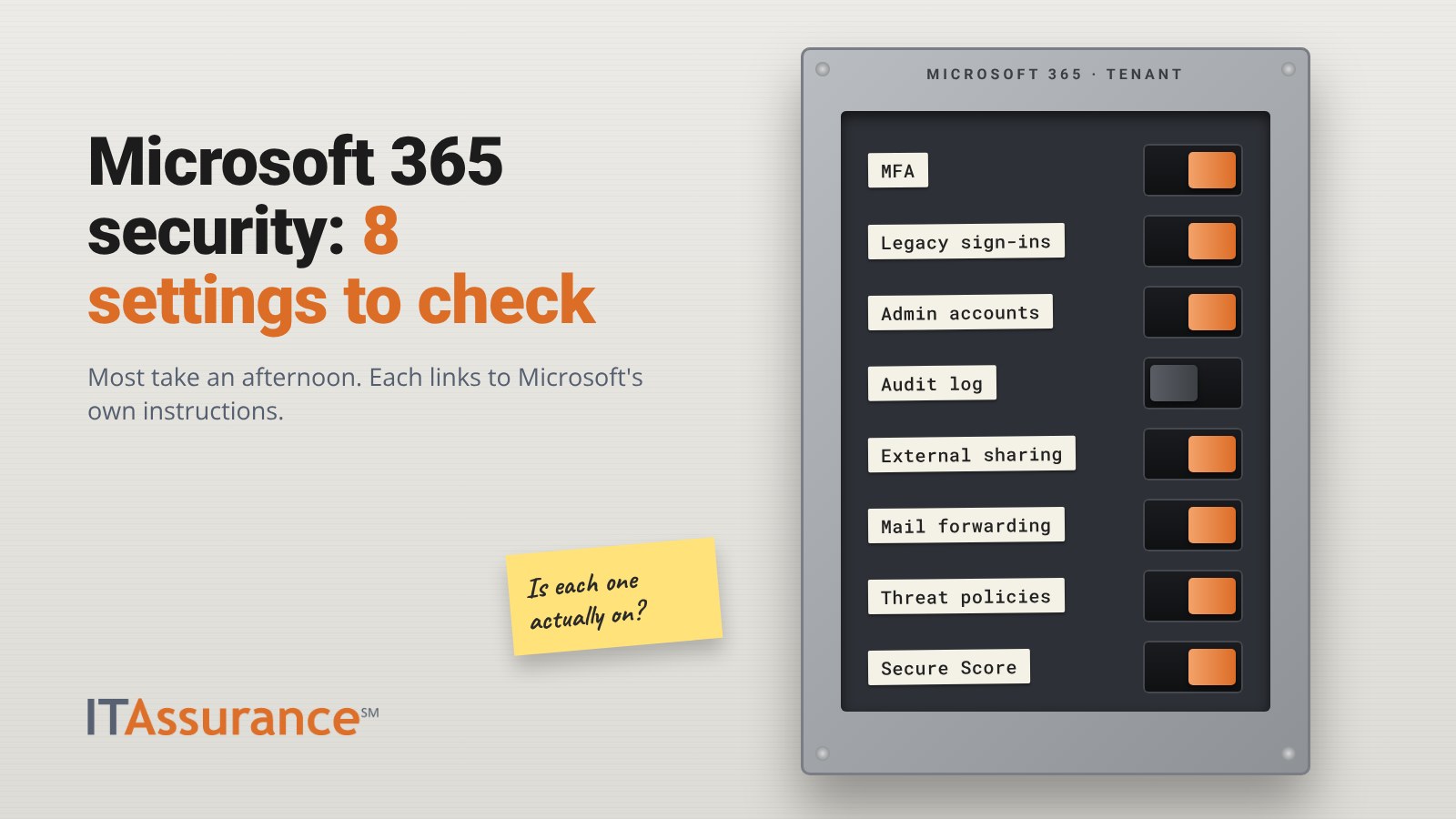
A Microsoft 365 security checklist for a small business comes down to eight settings: MFA through security defaults or Conditional Access, blocking legacy sign-ins, a short list of protected admin accounts, audit logging, external sharing limits, automatic mail forwarding, email threat policies and Secure Score. Whoever holds admin access can check most of them in an afternoon, and each section below links to Microsoft’s own instructions.
One warning first: Microsoft moves its admin menus often. The paths below match Microsoft Learn as of November 2026. If your screen looks different, follow the linked page.
1. MFA: security defaults or Conditional Access
Multifactor authentication (MFA) asks for a second check, such as an app prompt, after the password. In Microsoft 365 it’s switched on one of two ways.
Security defaults are a single on/off switch. They require every user to register for MFA, require admins to use MFA and block legacy authentication (Microsoft Learn: security defaults). You’ll find them in the Microsoft Entra admin center under Entra ID > Overview > Properties > Manage security defaults.
Conditional Access lets you write your own rules, such as requiring MFA everywhere except on company devices. Microsoft says security defaults are probably not right for organizations with Microsoft Entra ID P1 or P2 licenses, which can use Conditional Access instead, and you have to turn security defaults off to use it.
The check: is one of these actually on? A tenant with neither is the gap to close first. Microsoft now requires MFA to sign in to its admin portals, including the Microsoft 365 admin center, where enforcement began in February 2025 (Microsoft Learn: mandatory MFA). That protects admin portal sign-ins, not your users’ email. Our post on where to turn on MFA first covers priorities outside Microsoft 365.
2. Block legacy authentication
Older sign-in methods, such as basic authentication used by old mail apps and scanners, can’t do MFA. Microsoft reports that more than 97% of credential stuffing attacks and more than 99% of password spray attacks use legacy authentication (Microsoft Learn: block legacy authentication).
Security defaults block it automatically. With Conditional Access, Microsoft’s recommended policy targets the client apps “Exchange ActiveSync clients” and “Other clients” and sets the grant control to Block access. Create it in report-only mode first to find the old copier or app that will break, and exclude your emergency access accounts.
3. Admin accounts: separate, few and protected
Microsoft’s guidance for small businesses is that admins should use an ordinary account for email and daily work and sign in with the admin account only when needed (Microsoft Learn: protect your administrator accounts). It also recommends:
- Fewer than five Global Administrators (Microsoft Learn: best practices for Entra roles).
- The least powerful role that does the job, such as User Administrator for someone who only creates accounts.
- MFA on every admin account.
- At least two cloud-only emergency access accounts that aren’t assigned to one person, with alerts on every use (Microsoft Learn: emergency access accounts).
The check: list everyone with the Global Administrator role and remove anyone who doesn’t need it.
4. Audit logging
This one surprises people. Microsoft says auditing isn’t enabled by default for Microsoft 365 Business Basic, Business Standard and Business Premium (Microsoft Learn: turn auditing on or off). Without it, if a mailbox is compromised, you may have no record of what the intruder did.
To check, open the Microsoft Purview portal and select Audit. If auditing is off, a banner offers to start recording user and admin activity. In Exchange Online PowerShell, Get-AdminAuditLogConfig | Format-List UnifiedAuditLogIngestionEnabled returns True when auditing is on. Microsoft notes it can take up to 60 minutes to take effect.
5. External sharing in SharePoint and OneDrive
In the SharePoint admin center, go to Policies > Sharing (Microsoft Learn: manage sharing settings). The levels run from “Anyone” (links that work without signing in) through “New and existing guests” and “Existing guests” to “Only people in your organization.” OneDrive can be set tighter than SharePoint but not looser.
Decide whether you need “Anyone” links at all. If you do, set them to expire and consider making them view-only. Consider “Specific people” as the default link type, so sharing with an outsider is a choice rather than an accident.
6. Automatic mail forwarding
A forwarding rule that quietly copies mail to an outside address is a common sign of a compromised mailbox, and a common leftover when someone leaves. Microsoft’s outbound spam policy has an “Automatic forwarding rules” setting. Microsoft advises choosing “On – Forwarding is enabled” or “Off – Forwarding is disabled” explicitly, rather than leaving “Automatic – System-controlled,” because the automatic setting behaves differently from one organization to the next (Microsoft Learn: control automatic external forwarding).
Turning it off blocks inbox rules and mailbox forwarding to external addresses. If one person has a real need, handle it as a documented exception. Our employee offboarding IT checklist covers what to do with a leaver’s mailbox.
7. Email threat policies
Every cloud mailbox gets built-in anti-malware, anti-spam and spoofing protection. Microsoft’s preset security policies apply its recommended settings in one step: Standard for most users, Strict for high-value targets such as owners and the people who approve payments (Microsoft Learn: preset security policies). In the Microsoft Defender portal, go to Email & collaboration > Policies & rules > Threat policies > Preset security policies.
Safe Links, Safe Attachments and impersonation protection need Defender for Office 365 licensing, so check what your plan includes.
8. Secure Score
Microsoft Secure Score, at security.microsoft.com/securescore, lists recommended actions and gives points for each one you complete (Microsoft Learn: Secure Score). Microsoft is clear that it isn’t an absolute measure of how likely a breach is. Treat it as a to-do list, not a grade, and record why you skipped anything you decided not to do.
For a deeper benchmark, CISA’s Secure Cloud Business Applications (SCuBA) project publishes Microsoft 365 secure configuration baselines. They were written for federal agencies, so use them as a reference rather than a rulebook.
The Microsoft 365 security checklist at a glance
| Setting | What good looks like |
|---|---|
| MFA | Security defaults or Conditional Access is on, and every user is registered |
| Legacy authentication | Blocked, with any exceptions documented |
| Admin accounts | Separate from daily accounts, fewer than five Global Administrators, two emergency accounts |
| Audit logging | Confirmed on |
| External sharing | Set on purpose; “Anyone” links expire or are off |
| Mail forwarding | External auto-forwarding off, exceptions documented |
| Email threat policies | Standard preset for everyone, Strict for key people |
| Secure Score | Reviewed, with a reason recorded for skipped actions |
Free Microsoft 365 Security Check
ITAssurance℠ is a managed service provider (MSP) serving Maryland businesses since 2004, working with organizations of 10 to 250 users. We push every client to turn on MFA for every account, including admin and email, and SecurityAssurance℠ Standard is included with every ITAssurance℠ managed IT client. Here’s how we manage Microsoft 365 day to day.
If you’d rather not work through this list alone, we’ll go through it with you. The free Microsoft 365 Security Check looks at five areas of your tenant:
- Sign-in security: MFA coverage and legacy authentication
- Admin access: who holds admin roles and how those accounts are protected
- Sharing: external sharing in SharePoint and OneDrive, and automatic mail forwarding
- Email protection: threat policies for phishing, spam and malware
- Visibility: audit logging and your Secure Score
We’ll walk you through what we find and what to fix first. Request your free Microsoft 365 Security Check, or call (301) 246-8680.
Frequently asked questions
Are security defaults enough for a small business?
For a small tenant without Conditional Access licensing, security defaults are a strong starting point: they require MFA registration, require MFA for admins and block legacy authentication. Microsoft says security defaults are probably not right for organizations with Microsoft Entra ID P1 or P2 licenses, which can use Conditional Access instead.
Is audit logging on by default in Microsoft 365?
Not for every tenant. Microsoft says auditing isn’t enabled by default for Microsoft 365 Business Basic, Business Standard and Business Premium, so check it and turn it on if it’s off.
What is a good Microsoft Secure Score?
Microsoft doesn’t set a passing number. It describes Secure Score as a summary of your configuration, not an absolute measure of how likely a breach is. Use it to decide what to fix next, and record a reason for anything you choose not to do.
Do we need extra licenses for email protection?
Every cloud mailbox gets built-in protection such as anti-malware, anti-spam and spoofing protection. Safe Links, Safe Attachments and impersonation protection need Microsoft Defender for Office 365 licensing, so check what your plan includes first.
General information for business owners. It isn’t legal, compliance or insurance advice for your specific situation.